
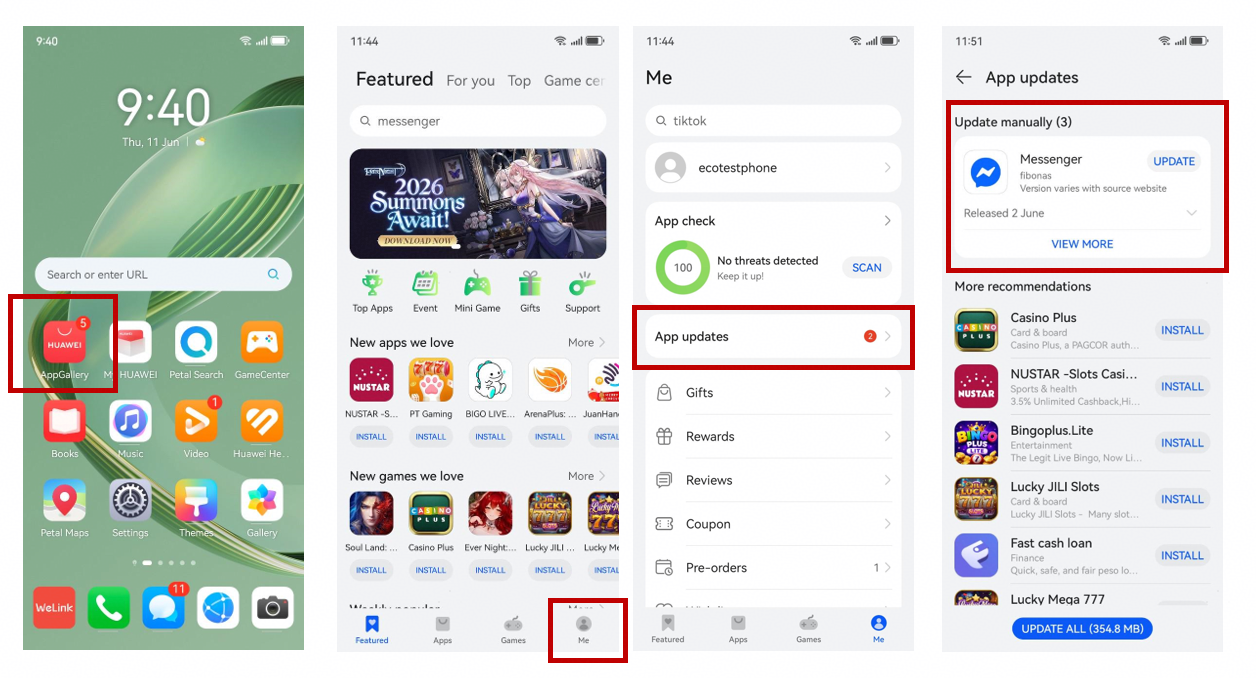
Messenger problems on a Huawei phone do not always look the same. Sometimes the app will not update. Sometimes it is not installed at all. And sometimes everything seems fine until you realise new messages only appear after you open the app. The Huawei Community post treats these as separate issues, which makes the troubleshooting much easier.
Start with the normal update path
Open AppGallery and tap Me at the bottom right. Select App updates, find Messenger, and tap Update. This is the first route given in the source and should be the first check before changing anything else.
For Huawei Messenger, the important point is that AppGallery is the main update path described by Huawei Community. If the update appears there, let it finish before trying another installation route.
When Messenger is stuck on an old version
If the update does not work, check where the installed app came from. The source specifically says to make sure Messenger was installed from AppGallery. Reinstalling it from AppGallery is the recommended way in the post to get the latest version when the existing copy is causing trouble.
This also avoids mixing an AppGallery copy with another package and then wondering which one is actually being updated.
If Messenger is missing from the phone
For a fresh installation, open HUAWEI AppGallery, search for Messenger, and tap Install. The guide includes this route for users who want Messenger on a Huawei device without using Google Play Store.
After installation, open Messenger normally. If the app launches and your account works, there is no reason to make the setup more complicated.
Where GBox fits in
The same Community article mentions GBox as a reliable alternative for installing and updating apps. It is best understood as the second route rather than the first one. AppGallery is still the first app store the source tells Huawei users to check.
If another app cannot be found there, the guide says GBox can be tried. Keeping those roles separate makes the overall app setup easier to maintain.
Check the Huawei system update too
An app problem can happen at the same time as an outdated phone software version. Go to Settings > System & updates > Software update and let the device check for a new version. If a new version appears, install it from that screen.
This does not replace the Messenger update in AppGallery. It is simply the phone-level check included in the original troubleshooting flow.
If messages only appear after you open the app
The post has a separate answer for missing Messenger alerts. Open Settings > Notifications & status bar, search for Messenger, and enable Allow notifications.
This is especially relevant when the app itself opens normally but you keep missing messages. Before you remove or reinstall Messenger again, confirm that the phone is actually allowed to show its notifications.
Use one fix at a time
The walkthrough linked through Huawei Messenger works best when followed in order: AppGallery update first, AppGallery reinstall when the installed copy or update is the problem, GBox only as the alternative mentioned in the source, a system software check, and finally the notification setting when alerts are missing.
Changing one thing at a time also makes it obvious what solved the issue. Once Messenger is updating and notifications are arriving normally, stop there rather than rebuilding a setup that already works.

